In this article:
If you manage multiple accounts or collaborate with other users across different accounts, it can be useful to transfer templates and automated marketing scenarios from one account to another. Whether you're standardizing your communications, reusing content, or simplifying your processes, this feature can help save you time and increase efficiency. Here's how to do it.
Before you begin
To transfer templates or scenarios between accounts, the user must have the right to access both of them. If you'd like to access multiple accounts using the same login, the account owner must send a request with the following information to support@cyberimpact.com :
- Name and number of the account that you want to share access: The account name is the name of the company that owns the account. You can find the account number by clicking the silhouette icon in the top right corner of your account.
.png)
- Username, account name, and account number: Specify the username that you want to grant access and to which account it belongs. Please note that passwords should never be shared.
- User permission level: Indicate the desired access permission level:
- Administrator: Full control over all account features.
- User: Limited access to essential features.
- User with custom permissions: You can define specific permissions for this user.
Users with multi-account access will appear as external users in the accounts they can access.
.png)
For more details on user types and permissions, please refer to our guide: Customize user permissions and types >
How to switch from one account to another
Once multi-account access is set up, switching from one account to another becomes very easy—you don’t need to log out.
Here’s how to switch between the accounts you have access to:
- Click the account name at the top right of your screen.
This is the name of the account you are currently viewing. A dropdown menu will appear if multiple accounts are available. - Select one of the other available accounts from the list.
All accounts you have access to will appear here. Simply click the one you want to open.
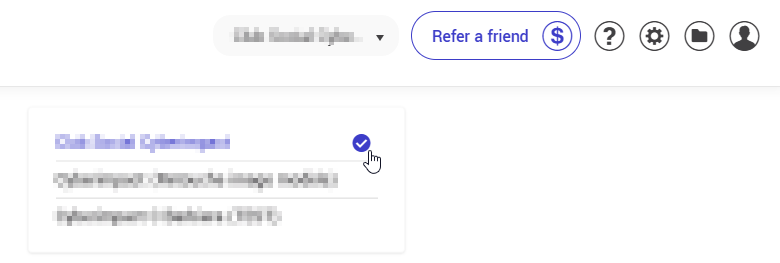
- You will be automatically redirected to the selected account.
There is no need to log in again or switch users—the transition is instant.
This feature allows you to quickly access the different environments you’re authorized to use, making it easier to manage your communications, templates, and automated marketing scenarios across multiple accounts.
Transferring templates between accounts
Once multi-account access is set up, you can easily transfer templates from one account to another by following these steps:
- Log in to the account where the template was created using your multi-account access.
- Once logged in, go to the Templates section in the menu.
- Select the templates to transfer. Check the boxes next to the templates you want to transfer.

- Click the Copy to other accounts button at the top of the template list.
- Select the destination accounts. Choose to which accounts you want to copy the templates.
.png)
- Confirm the operation: Click Copy templates to confirm the transfer.
Once transferred, templates in the source account will be marked with a specific icon.
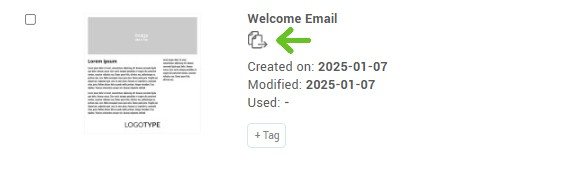
To prevent the loss of images and files associated with transferred templates, we recommend uploading those assets directly into the image and file bank of the destination account. Then, replace any linked assets in the transferred templates with the ones uploaded to the new account.
- To add images to a template, see this guide:
Add images to a template > - To add files to a template, see this guide:
Add files to a template >
Following these steps will help you manage templates across multiple accounts efficiently and avoid losing associated assets.
Transferring automated marketing scenarios between accounts
In addition to templates, you can also transfer automated marketing scenarios between accounts, as long as the user has multi-account access.
Here’s how to transfer a scenario:
- Log in to the source account where the scenario was created using your multi-account access.
- Go to the section.
- Select the scenarios you wish to transfer, then click Copy to other accounts.
- Select the destination account from the list.
- Click Copy scenarios to confirm the transfer.